Bouncing Logo GIF Maker
Upload a logo. Watch it bounce. Download a looping GIF.
Make a bouncing logo GIF in your browser, the same diagonal drift and edge hits as the classic DVD screensaver, with your own image. No timeline, no keyframes, no After Effects. Preview it live, then export a loop that plays cleanly on Discord, Slack, Instagram, a website, or a stream overlay.
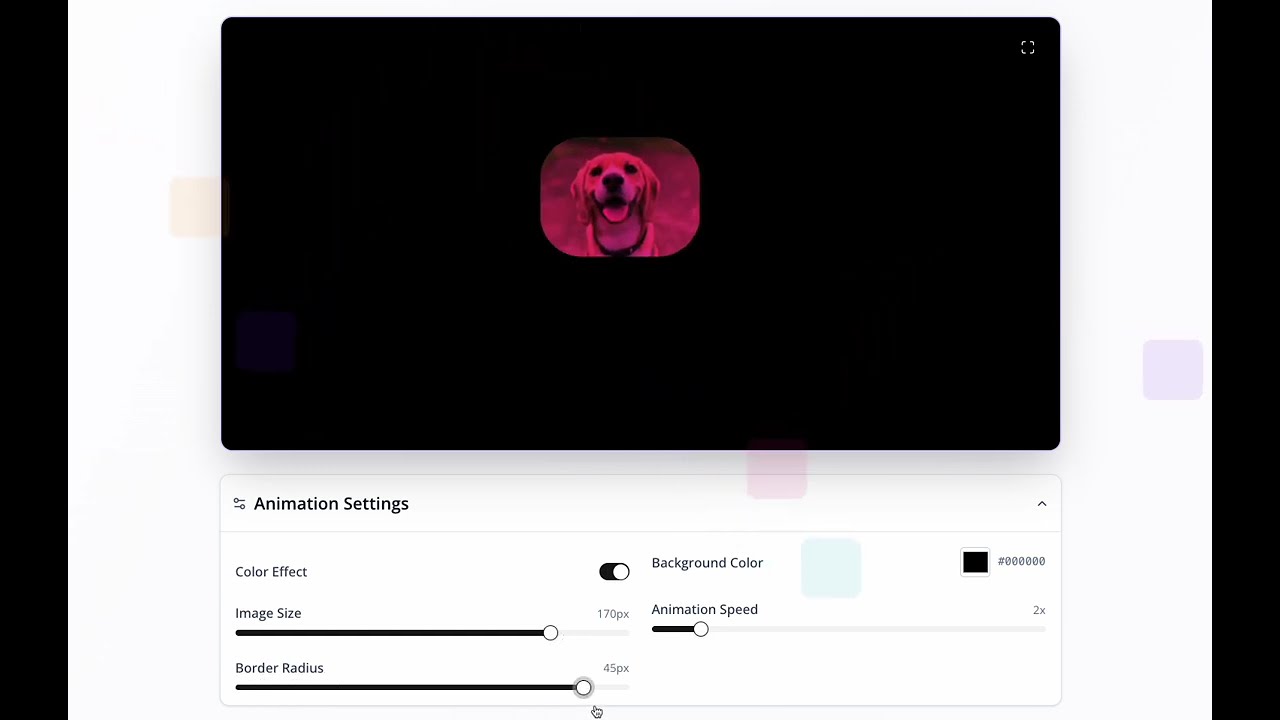
Used by streamers, marketers, and anyone who wants a logo GIF that actually moves instead of sitting still.
Typical GIF tools vs DVDify
Photoshop, AE, random GIF sites
This GIF maker
Draw a path or write bounce expressions
Upload and the bounce is already running
Guess the loop point and re-export
Physics that loops without a visible jump
Desktop install or a watermarked converter
Runs in the browser, GIF/MP4/WebM out
Hours the first time you try it
A finished loop in a couple of minutes
What a bouncing logo GIF actually is
A bouncing logo GIF is a short, looping animation of a mark sliding across a frame on a diagonal, kissing an edge, and heading the other way. The version most people remember is the DVD screensaver: a logo that never stops, changes color when it hits a wall, and, once in a while, nails the corner. That last moment is why the original became a meme. People waited for it. They still do.
The format matters as much as the motion. A GIF is a file you can drop almost anywhere a still image would go. Discord accepts it. Slack accepts it. Plenty of email clients, blog editors, and older CMS fields accept it. You do not need a video player, a special embed, or someone on the other end who knows what WebM is. That is why people specifically search for a bouncing logo GIF maker instead of a generic video tool. They want the DVD bounce in a file that travels.
DVDify is built for that job. You upload a logo or any other image, the bounce starts immediately, and you export a loop. The physics are the same ones people expect from the old DVD player: constant speed, honest edge detection, optional hue shifts, and a real chance of a corner hit. You are not faking the bounce with two keyframes and a hope. You are running the animation and saving what you see.
Why make a GIF instead of a video
MP4 looks sharper. WebM can carry a transparent background. Those formats are the right call for a long lobby loop, a stream overlay, or a 4K screen. A GIF is the right call when the file has to live inside a chat, a tweet-sized post, a README, a Notion page, or a CMS that only lets you attach an image. If the person receiving it cannot press play, a GIF still moves.
GIFs also set an expectation. People read them as loops. They do not wait for a play button or wonder if the file is broken when it restarts. For a bouncing logo, that is exactly the behavior you want. The logo should feel like it has been drifting for hours, not like a five-second clip that ends. A tight loop sells that illusion. A sloppy loop, the kind you get when you guess the last frame in a timeline, makes the logo hitch every cycle. Viewers notice. They may not name it, but they feel it.
There is a tradeoff, and it is honest: GIFs get heavy if you make them long or huge. That is why this maker lets you preview first and pick a duration that fits the place you are sending the file. A few seconds is plenty for Discord or a tweet. A longer HD export is better as MP4 if the GIF would balloon. You can make both from the same bounce, so you are not locked into one format when the idea is good and the destination changes.
How to make a bouncing logo GIF
Start on the DVDify homepage and upload the image you want to bounce. PNG, JPG, WebP, SVG, and GIF all work. If you have a logo file with a transparent background, use that. The bounce reads cleaner when the mark is cut out and the background of the animation is a color you chose, not a leftover white box from a screenshot. High contrast helps too. A pale gray icon on a pale gray field disappears the first time the hue shifts.
The animation does not wait for you to press a timeline playhead. As soon as the image is in, it starts the diagonal. That live preview is the whole point of a dedicated bouncing logo GIF maker. You can see whether the logo is too big for the frame, too fast for a professional slide, or too slow for a stream BRB screen, before you spend a render. Drag the size slider. Change the speed. Flip color-change on or off. Pick landscape for a site banner, portrait for Stories and Reels, or square for a feed post.
When the bounce feels right, open download and choose GIF. The free export is short and in standard definition, which is enough to test the loop in the exact place you plan to use it. If the GIF is going on a sharper screen, into an ad, or into a deck you will show on a projector, step up to HD. You can also export MP4 or WebM from the same settings if the destination prefers video. One setup, several files, no second project.
What to upload so the GIF looks intentional
The best bouncing logo GIFs start with a mark that already works at a small size. Wordmarks with thin hairlines get lost. Intricate crests turn into mud when the file is a GIF and the frame is a few hundred pixels wide. If your official logo is detailed, try a simplified lockup, an icon, or a high-contrast version built for social. You can always run a second export with the full lockup for a larger MP4.
Transparent PNGs are the default recommendation for a reason. The bounce is the subject. Extra padding, drop shadows from a slide template, or a random studio backdrop fight the motion. Crop in the editor if you need to. If the only file you have is a photo of a sign or a screenshot from a PDF, it can still work, but give it a background color that separates the subject from the edge of the frame so every bounce is readable.
You can bounce more than a corporate logo. People upload album art, emoji, merch photos, meme stills, and church or team marks. The GIF maker does not care what the image is, as long as it is yours to use. If you are making this for a brand, use assets you have rights to. The export is a real file that will get copied. Treat it like any other public graphic.
GIF, MP4, or WebM from the same bounce
Think about the destination before you pick a format, not after the file fails to upload. GIF is the compatibility format. It loops in chat apps, many social composers, and older site builders. The colors are limited compared with video, so neon gradients and photographic backgrounds can band. If your logo is flat and the background is a solid color, a GIF usually looks fine. If the image is a photo, preview the GIF before you send it to a client.
MP4 is the quality format. Use it for YouTube, presentations, a USB stick on a TV, or any screen that will run the loop for a long time. A longer MP4 does not have the same size problem a long GIF does, and the color holds up. WebM is the overlay format. Turn on a transparent background and export WebM when you want the bouncing logo to float over gameplay, a countdown, or a camera shot in OBS. That file is not a GIF, and it should not be. Transparency and chat compatibility are different jobs.
A practical workflow: make the bounce once. Export a short GIF to drop in Slack or Discord so people can react. Export an HD MP4 for the recap video or the lobby screen. Export a transparent WebM if you also stream. You are not rebuilding the animation three times. You are saving the same motion in the container each place expects.
Settings that change how the GIF feels
Speed is the first thing people notice. A slow bounce feels like a screensaver in a waiting room. A fast bounce feels like a stream alert or a party graphic. Neither is wrong. Match the room. For a logo that has to sit behind a speaker, stay slower so the motion does not compete with the talk. For a “starting soon” screen, you can push it. The live preview is there so you do not guess from a number.
Size and how many logos you run at once change the density. One mid-size logo is the classic DVD look. Several smaller copies turn the frame into a pattern, which is fun for youth events and chaotic chat culture and too busy for a board deck. Color shift is the other personality switch. Leave it on if you want the nostalgic DVD hit. Turn it off if brand guidelines say the mark stays one exact hex. The bounce still works either way. The corner hit still happens.
Aspect ratio is not a cosmetic extra. A 16:9 GIF on a 9:16 story gets letterboxed or cropped by the platform. Make the file in the shape of the hole it has to fill. Square for a feed. Portrait for Reels, Shorts, and Stories. Landscape for a site header, a slide, or a TV. Duration should be short for GIF and as long as you need for video. A ten-second GIF that loops well beats a two-minute GIF that nobody can send.
Where bouncing logo GIFs get used
Chat is the obvious one. A bouncing logo GIF in Discord or Slack is a status, a reaction, a bit of identity that sits in the sidebar of a conversation. Teams drop them in launch channels. Streamers drop them in Discord so the community has the same toy on their phones. Because it is a GIF, it does not need a bot or a player. You attach it and it moves.
Social posts are next. A still logo in a feed is easy to scroll past. The same logo bouncing, especially if someone is waiting to see whether it hits the corner, holds an extra second. That is enough for a lot of campaigns. Stories and Reels want portrait. LinkedIn and X are more forgiving of square and landscape. Export the ratio that matches the post instead of stretching a 16:9 GIF and hoping.
Then there are the quieter uses: a loop on a personal site, a loading state, a slide that plays while people sit down, a church or school lobby screen that would otherwise show a frozen PNG. For those last cases you may want MP4 on the actual display and a GIF only for the invite or the Instagram teaser. The maker covers both. Streamers who want the bounce over a camera should read the OBS guide and export WebM, not GIF. The GIF page is for the file that has to behave like an image.
Why a dedicated maker beats a timeline for this
You can build a bouncing logo in After Effects, Photoshop’s timeline, CapCut, or a dozen other editors. You import the asset, set a composition size, animate position, detect the edges yourself or steal an expression, add a color effect, then render and pray the loop is seamless. The first time, that is a tutorial. The fifth time, it is still a project file. If you only needed a GIF for a Slack launch, you spent an afternoon on infrastructure.
A bouncing logo GIF maker is the opposite bet. The bounce is a solved physics problem. The loop is computed so the last frame meets the first without a hitch. The preview is the render. You spend your time on the image and the feel, not on expressions. That is the same reason people use DVDify instead of After Effects for this one animation, and it is even more true when the output is a GIF. You do not need a compositing suite to send a logo across a square.
Skip the subscription and the plugin hunt. Upload the mark, watch it bounce, download the GIF. If you later need a longer HD loop or a transparent overlay, you are already in the tool that exports those too. The GIF is the start of the file, not a downgrade from “real” video.
What people usually make
Export your video in multiple formats
Up to 15 hours • No subscription required
Live bounce, then export
The GIF you download is the animation you already watched. No blind render, no surprise loop seam.
Built for actual GIF destinations
Short loops, the ratios chat and social expect, and a file you can attach like an image.
Same physics as the DVD original
Diagonal drift, edge hits, optional color shifts, and a real corner. Not a two-keyframe fake.
Frequently asked questions
How do I make a bouncing logo GIF?
Upload your logo on DVDify. The bounce starts in the browser. Adjust speed, size, colors, and aspect ratio, then click Download and choose GIF. You can also export MP4 or WebM from the same setup.
Is the bouncing logo GIF free?
Yes. You can make a short standard-definition GIF without an account or a card. HD, 4K, and longer loops are paid exports if you need them for a sharper screen or a longer run.
Will the GIF loop smoothly?
The motion is generated so the cycle does not show a cut. That is the difference between this maker and dragging a logo across a timeline and guessing the last frame. Keep GIF duration short so the file stays small enough to send.
Can the bouncing logo hit the corner in a GIF?
Yes. The GIF uses the same physics as the classic DVD screensaver. When it hits the corner, all four edges line up at once. Timing is not on a fixed beat, so each loop feels a little different.
What image should I upload?
A transparent PNG of your logo is best. Flat, high-contrast marks read better in GIF than tiny hairline wordmarks or busy photos. You can still bounce a photo or a screenshot if that is what you have. Crop extra background first.
Should I export GIF or MP4?
GIF when the file has to work like an image: Discord, Slack, many social composers, blogs. MP4 when you want sharper video, a longer loop, or a TV or presentation. WebM with transparency when the logo should float over a stream. You can export more than one format from the same bounce.
Do I need After Effects or Photoshop to make this GIF?
No. Those tools can do it, but they are the long way. This bouncing logo GIF maker runs in the browser. Upload, preview, download. No keyframes, no expressions, no plugin versions.