Bouncing DVD Screensaver for OBS
The easiest way to create transparent bouncing logo overlays for your streams and videos.
Learn how to use DVDify to create a custom bouncing DVD screensaver for OBS Studio. Perfect for streamers, content creators, and video editors who want a professional overlay with transparent background support.
Used by thousands of brands, businesses, streamers on Twitch, YouTube, and Kick to add nostalgic, custom overlays to their broadcasts.
How to Set Up in OBS
Follow these 4 simple steps to get your custom bouncing logo live on your stream in less than 2 minutes.
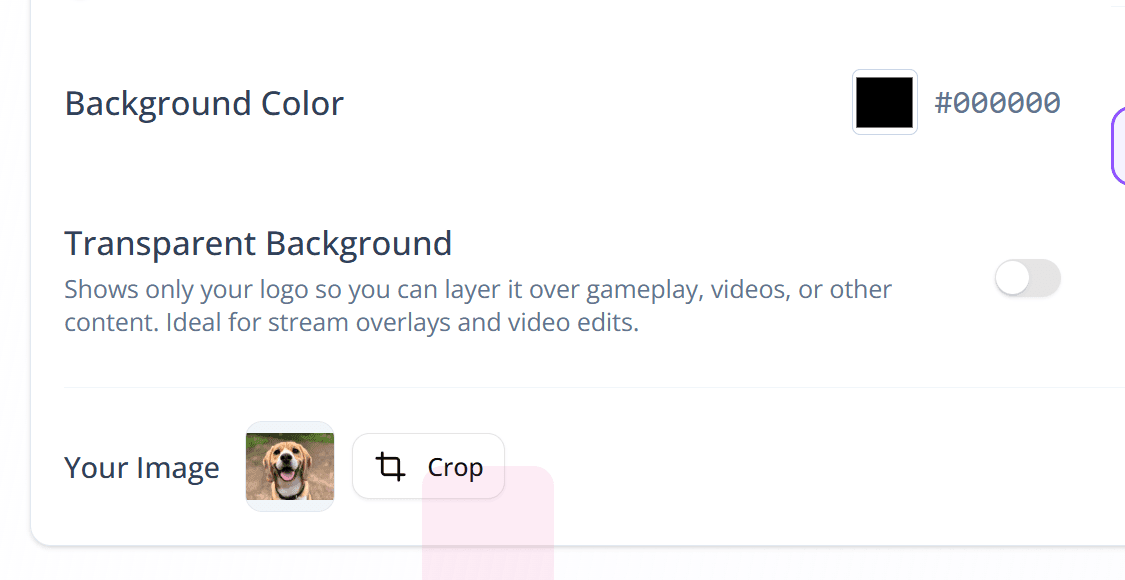
Design Your Overlay
Go to the DVDify editor and upload your logo or image.
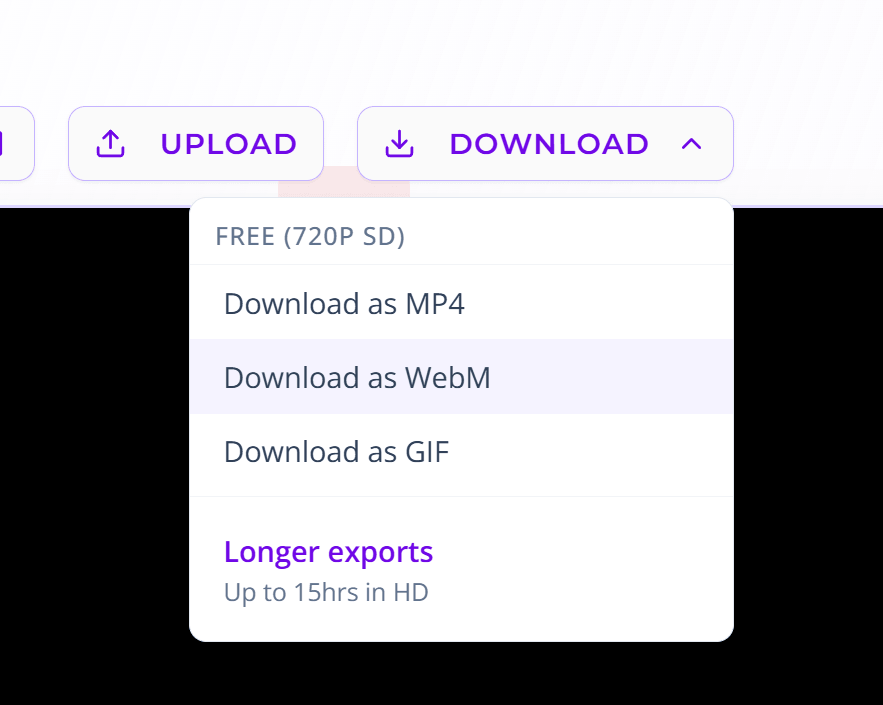
Export as WebM
Click Export and select the WebM format. This is the only format that supports high quality transparency for OBS.
Streamer's Tip
Export a 10m or 1h version. This makes the loop point impossible for viewers to spot during a long broadcast.
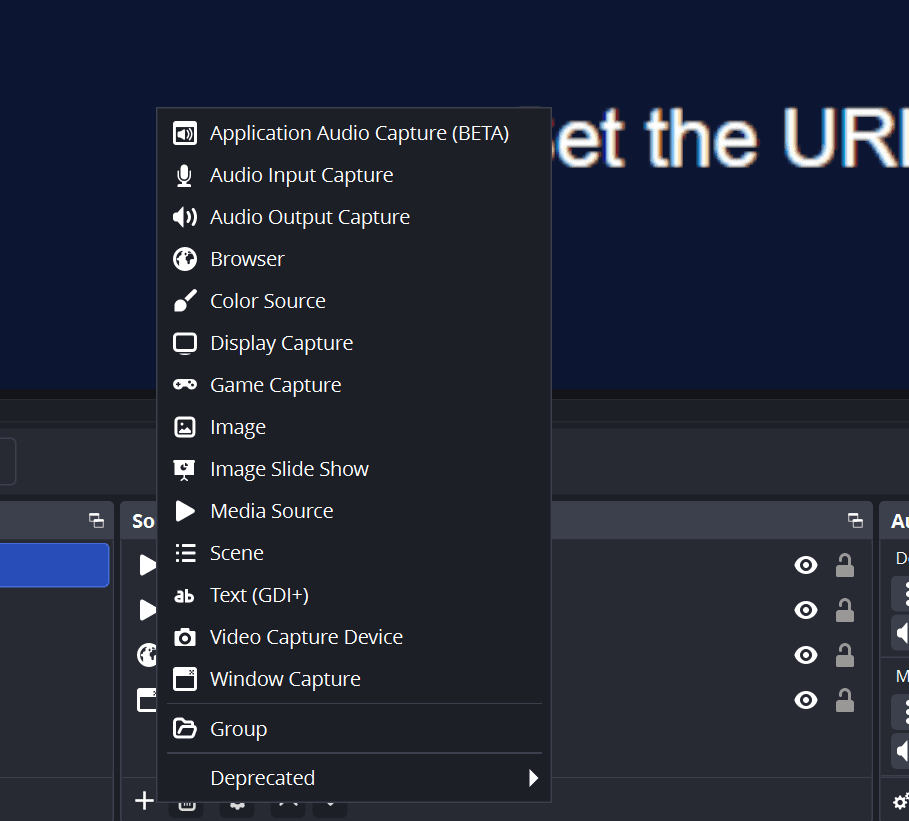
Add Media Source
In OBS Studio, find the Sources panel, click the + icon, and choose Media Source.
- • Name it "Bouncing Logo"
- • Locate your downloaded WebM file
Enable Looping
Before clicking OK, ensure the Loop checkbox is checked. Your overlay will now bounce indefinitely.
Perfect Loop: DVDify animations are mathematically calculated to loop perfectly with no jitter.

Why Use a Bouncing DVD Logo in OBS?
The bouncing DVD logo is a cult classic. For streamers and content creators, it serves as a perfect "Just Chatting" overlay, an intermission screen, or even a subtle background element. With DVDify, you're not stuck with the original logo you can use your own brand logo, an animated GIF, or promotional images.
Stream Overlays
Use it as a transparent layer over your gameplay or camera to keep viewers engaged during breaks.
Content Creation
Perfect for Reels, TikToks, and YouTube videos as a fun, custom branded overlay.
Tips for your stream
Once you've mastered the basic setup, you can start getting creative with how these overlays interact with your stream layout. While a single bouncing logo is the classic nostalgic choice, it's just the starting point. If you're building a high-energy "Starting Soon" screen or a busy intermission layout, I recommend trying the Multi Bounce feature. By enabling up to 10 instances of your logo at once, you create a much more dynamic visual that keeps your viewers engaged while they wait for the action to start.
One of the most effective ways to make your stream look professional is to layer multiple different images. Instead of trying to bundle everything into a single export, try exporting your brand logo, a sponsor's logo, and a custom emote as separate WebM files. Because each export preserves full Alpha Transparency, you can add them as individual Media Sources in OBS and stack them. They'll each bounce independently, allowing you to create a complex, multi-layered look that won't block your gameplay or webcam.
You aren't limited to static images, either. You can upload animated GIFs to create bouncing characters or custom animations that add a unique personality to your broadcast. This is particularly great for "Just Chatting" segments where you want a bit of movement in the background. With the precise controls for speed, scale, and physics, you can fine-tune these animations until they perfectly match your stream's aesthetic and energy level.
Export your video in multiple formats
Up to 15 hours • No subscription required
Layering in OBS
Once added, you can drag your "Bouncing DVD" source on top of any other source in OBS:
Pro Tip: Layer Multiple Sources
Because DVDify exports have a transparent background, you aren't limited to just one. You can add multiple Media Sources in OBS, each with a different bouncing image. This is great for showing your logo, a sponsor, and a custom emote all bouncing around the screen independently.
Ready to Upgrade Your Stream?
Create your custom bouncing logo overlay in seconds.